

Apple Wallet uses the .pkpass format for loyalty cards — the merchant must generate it, which is why not all loyalty programs are wallet-ready.
Apple Wallet stores loyalty cards as "passes" — a specific digital format (.pkpass) that includes a barcode, card details, and optional dynamic data like points balance. Unlike payment cards (which use Apple Pay's NFC chip), loyalty passes display a scannable barcode at checkout.
There are three types of passes relevant to loyalty: Store Cards for loyalty and rewards programs. Coupons for one-time offers and discounts. Generic Passes for membership cards that don't fit other categories.
Store Card passes are the most powerful. They can display your current points balance, tier status, and recent activity. They support push notifications — the merchant can send updates when you earn points, level up, or have a reward waiting. And they support geo-fencing, meaning the pass automatically appears on your lock screen when you walk into the store.
The key distinction: Apple Wallet only accepts passes generated in the .pkpass format by the merchant or a wallet pass platform. You can't create a pass from scratch inside Apple Wallet itself. This is why some loyalty cards require workarounds — the merchant hasn't created a wallet pass for their program.
As of iOS 17 and later, Apple Wallet also supports passes shared via AirDrop, QR codes, links in Messages, email attachments, and NFC taps — making it easier than ever to add cards from multiple sources.
Check if your favorite stores support Apple Wallet by searching their app for an "Add to Apple Wallet" button or asking staff at checkout.
Wallet passes with geo-fencing auto-appear on the customer's lock screen when they enter the store — a feature that increases scan rates by 3-4x compared to manually opening an app.
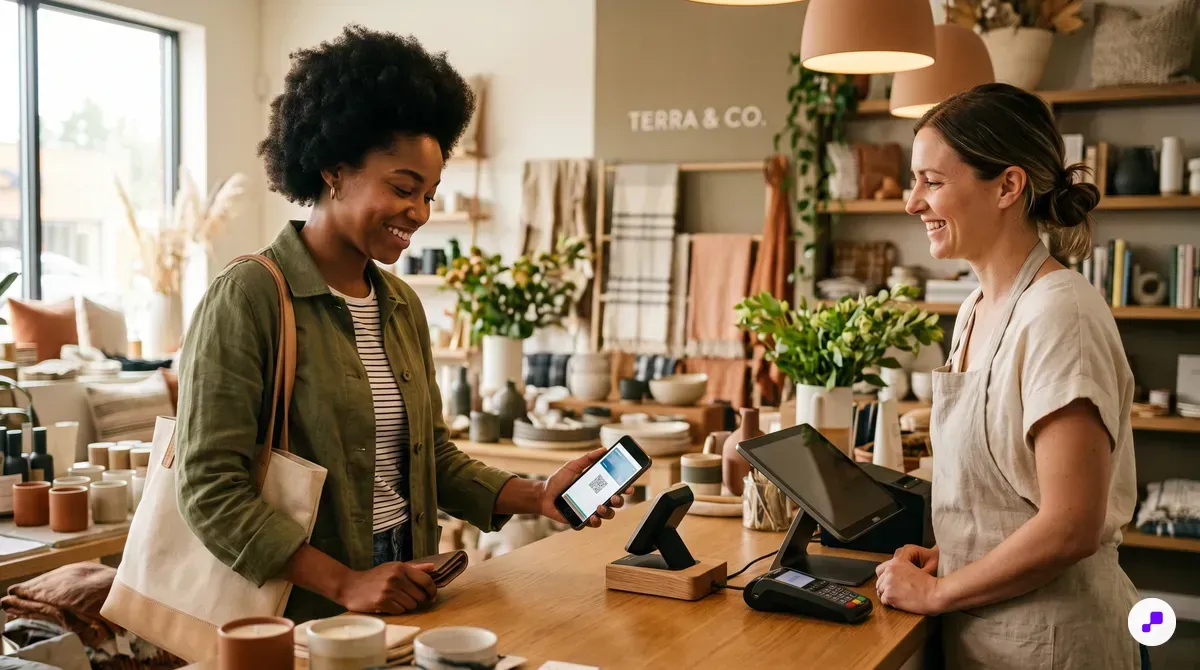
Retailer apps are the fastest path — look for the "Add to Apple Wallet" button in the loyalty card, account, or rewards section.
The fastest and most reliable method. Major retailers including Starbucks, Target, Walgreens, CVS, Sephora, and hundreds of others include Apple Wallet integration in their apps.
Open the retailer's app and navigate to your loyalty card or account section. Look for the Apple Wallet icon — a black button that says "Add to Apple Wallet." Tap it, preview the pass, and tap "Add" in the top right corner. Done.
The pass inherits whatever data the retailer provides: your membership number, barcode, points balance, tier status, and store locations for geo-fencing. When the retailer updates your account (new points, rewards earned), the pass can update automatically.
If you don't see an "Add to Apple Wallet" button, check these locations: the loyalty card detail screen, the account settings, the barcode/QR code display screen, or the "my rewards" section. Some apps hide it behind a share icon or a menu.
Not finding it? The retailer may not support Apple Wallet yet. Before trying workarounds, check their website — some brands offer wallet pass downloads from the web without requiring their app. Search "[store name] apple wallet" in Google and look for a direct .pkpass download link.
For merchants wondering how this works on their end: Shopify apps like JeriCommerce generate these passes automatically. When a customer signs up for your loyalty program, they receive a link to add the pass. No development work required — the pass generation, delivery, and dynamic updates are all handled by the platform.
If you can't find the Apple Wallet button in the app, try the retailer's website instead — some offer wallet pass downloads from the online account page.
Shopify loyalty apps generate .pkpass files automatically and deliver them via email, SMS, or in-store QR code — customers add with a single tap.
QR codes are the fastest enrollment path — scan at checkout, on receipts, or in emails to add a loyalty pass in seconds.
Many businesses display QR codes at checkout, on receipts, on packaging, or on their website that link directly to an Apple Wallet pass.
Open your iPhone camera and point it at the QR code. A notification banner appears at the top: "Add to Apple Wallet" or "Open in Wallet." Tap the banner, review the pass, and tap "Add."
This method is especially common at physical retail locations. Look for QR codes on the checkout counter, on printed receipts, on table tents at restaurants, on product packaging, or on door stickers near the entrance.
Some retailers also display QR codes in their email newsletters or on their website's loyalty sign-up page. If you received a welcome email when you joined a loyalty program, scroll through it — there's often a QR code or "Add to Apple Wallet" button in the email body.
The QR code method is the most frictionless enrollment path for merchants. A customer scans a code, adds the pass, and is enrolled — no app download, no account creation, no form to fill out. It's why businesses using wallet passes see enrollment rates of 65-75% compared to 10-20% for standalone apps.
For digital experiences, merchants can also embed wallet pass download buttons on their Shopify store. After checkout, the order confirmation page or email includes a link that adds the loyalty pass automatically. This integrates naturally with the existing ecommerce loyalty program flow.
Next time you're at checkout, ask the cashier if they have a QR code for their loyalty program — many stores have them but don't prominently display them.
QR-to-wallet enrollment achieves 65-75% conversion rates because it requires zero friction — no app download, no account creation, no form.
Pass2U Wallet creates Apple Wallet passes from any barcode — useful when the retailer doesn't offer native wallet support.
When a retailer doesn't support Apple Wallet natively, Pass2U Wallet is the most reliable workaround. It's a free app (with a $2.99 ad-removal upgrade) that creates .pkpass files from any barcode.
Download Pass2U Wallet from the App Store. Tap the "+" button to create a new pass. Choose "Store Card" as the type. Scan the barcode on your physical loyalty card — Pass2U supports Code 128, QR, PDF417, Aztec, and most other formats. Add a name for the card (e.g., "Trader Joe's Loyalty") and optionally add the store's logo. Tap "Create" then "Add to Apple Wallet."
The pass now appears in your Wallet app. At checkout, open the pass and let the cashier scan the barcode. It works exactly like a native wallet pass — same barcode, same data.
Limitations to know: the pass won't show your points balance (that data comes from the merchant's system, which Pass2U can't access). The pass won't update dynamically. And geo-fencing won't work unless you manually set a location for the pass.
Despite these limitations, the core benefit — having all your loyalty barcodes in one place on your phone — makes Pass2U worth using for cards you use regularly. It beats carrying a stack of plastic cards or fumbling through multiple retailer apps at checkout.
Alternative apps that do the same thing: Stocard, FidMe, and Key Ring. All create wallet-compatible passes from barcode scans. Choose whichever has the best reviews for your region.
If you find yourself adding many loyalty cards this way, it's a sign the merchants you shop at should offer wallet-ready cards natively — better for you, better for their engagement metrics.
Batch-add your most-used loyalty cards to Pass2U in one sitting — it takes about 30 seconds per card and saves you from carrying physical cards.
Link-based wallet pass delivery (email, SMS, web) is the highest-converting enrollment method because it requires zero extra apps.
Loyalty programs that use wallet pass platforms deliver passes through direct links — no app required. You tap a link in an email, SMS, or web page, and the pass adds itself to Apple Wallet.
This method is becoming the standard for forward-thinking retailers. After signing up for a loyalty program (online or in-store), you receive an email or text message with a direct link. Tap it, the pass preview opens, tap "Add," and you're done.
The experience looks like this: "Thanks for joining [Store] Rewards! Tap below to add your loyalty card to Apple Wallet." Below the message is a branded button. One tap adds the pass with your membership number, barcode, and current points balance.
This method has two major advantages over app-based enrollment. First, there's no app to download — the pass goes directly into Apple Wallet, which is already on every iPhone. Second, the enrollment happens in the same channel the customer is already using (email or SMS), so there's no context-switching.
For merchants using Shopify, this flow is automated. When a customer creates an account or makes their first purchase, Shopify Flow triggers a wallet pass delivery via email or SMS. The pass links back to the customer profile, so points earned online or in-store appear on the same pass.
Some wallet pass platforms also support NFC tap distribution. A customer taps their iPhone on an NFC tag at the checkout counter, and the pass adds automatically. No scanning, no typing, no app — just a tap. This works with iPhone XS and later models running iOS 13+.
Search your email inbox for "add to apple wallet" — you may already have wallet pass invitations from loyalty programs you've joined.
Link-based delivery combined with NFC tap enrollment gives merchants two zero-friction distribution channels that achieve 65-75% adoption rates.
Location-based auto-display shows the right loyalty card on your lock screen when you enter a store — enable it in Pass Details for each card.
One of Apple Wallet's most useful features for loyalty cards is automatic display based on location. When you walk into a store, the relevant loyalty card pops up on your lock screen — ready to scan without opening any app.
To enable this: Open your loyalty card pass in the Wallet app. Tap the three-dot menu icon in the top right corner. Tap "Pass Details." Toggle on "Suggest on Lock Screen." If the pass includes a location (set by the merchant), you'll also see "Automatic Selection" — enable this too.
The feature uses Bluetooth Low Energy beacons and GPS to detect when you're near a participating store. When triggered, the pass notification appears on your lock screen. Tap it to reveal the barcode for scanning.
Not all passes support location-based triggers. The merchant needs to include GPS coordinates or iBeacon identifiers in the pass data. Native retailer passes (from Starbucks, Target, etc.) typically include this. Third-party passes created via Pass2U won't have it unless you manually add a location.
To add a location to a Pass2U-created pass: Open the pass, tap the info icon, scroll to "Location," and add the store's address. The pass will now trigger when you're within approximately 100 meters of that address.
For merchants: location-based triggers are one of the highest-value features of wallet passes. When your loyalty card appears automatically at checkout, scan rates increase by 3-4x. This means more identified transactions, more points earned, and more data for personalization. If you're building a location-based marketing program, geo-triggered wallet passes are essential for bridging online and in-store experiences.
Enable "Suggest on Lock Screen" for your 5 most-used loyalty cards so they automatically appear when you're at checkout.
Shopify POS locations sync with wallet pass geo-fencing — when a loyalty member enters your store, their pass appears automatically for scanning at the register.
Geo-fenced wallet passes auto-display on the lock screen near the store, increasing scan rates 3-4x and enabling identified transactions without staff prompting.
Wallet passes achieve 4-5x higher adoption than standalone loyalty apps and 85-95% push notification delivery — switching the delivery mechanism doubles engagement.
If you run a retail business or Shopify store, the data is clear: wallet-based loyalty cards outperform dedicated apps on every engagement metric.
Adoption rate: 65-75% of customers add a wallet pass when offered, versus 10-20% who download and register through a standalone loyalty app. That's a 4-5x difference in enrolled members from day one.
Retention: Wallet passes stay on the phone because they live in a native app the customer already uses. Standalone loyalty apps get deleted within 30 days by 77% of users. You can't engage customers through an app they've uninstalled.
Notification delivery: Push notifications through wallet passes achieve 85-95% delivery rates. Email averages 15-20% open rates. SMS gets read but carries per-message costs. Wallet notifications are free, instant, and visible.
The switch from physical cards or standalone apps to wallet passes doesn't require changing your loyalty program structure. Your points system, tiers, and rewards stay the same. The wallet pass is simply a better delivery mechanism — it's how the customer interacts with your program.
On Shopify, the setup takes less than a day. Install a wallet pass loyalty app, design your pass with your brand colors and logo, configure your earning rules, and set up automated distribution via email or QR code. From there, Shopify handles the data — purchases across online and POS channels sync to a single customer profile.
The ROI calculation is straightforward. If your current loyalty program has 1,000 enrolled members with 30% active, switching to wallet passes typically increases active usage to 55-65%. That's double the engaged members driving repeat purchases, higher AOV, and better retention — all from changing the delivery mechanism, not the program itself.
For a detailed Shopify setup walkthrough, see our guide on creating loyalty cards for Apple Wallet on Shopify. And if you're evaluating the financial case, run the numbers through our loyalty ROI calculator.
Calculate your current loyalty program's active usage rate, then model the impact of 2x active members on repeat purchase revenue — that's your wallet pass business case.
Shopify's unified customer profiles mean wallet pass loyalty data syncs across online store, POS, and social commerce — one customer, one pass, all channels.
Wallet passes eliminate the #1 barrier to loyalty engagement (app fatigue) by living in a native app every iPhone user already has and never deletes.
Adding loyalty cards to Apple Wallet is straightforward — through retailer apps, QR codes, direct links, or manual tools like Pass2U. The real value is consolidation: all your loyalty cards in one place, visible every time you open your phone, with automatic display when you enter a store. For merchants, wallet-native loyalty cards deliver 4-5x higher adoption and 2x engagement compared to standalone apps — making them the most effective way to build a loyalty program your customers actually use.
JeriCommerce delivers wallet-native loyalty cards for Shopify merchants — automatic enrollment, real-time points updates, push notifications, and seamless POS scanning, all without asking your customers to download an app.
Give your customers a loyalty card that lives on their phone. 65-75% adoption, real-time updates, and push notifications that actually get seen.
Install Free on Shopify